 all,
all,  new and changed,
  new,
new,  changed lines
 new on the left,
  new on the right,
  changed,
  unchanged lines
 last,
last,  next,
next,  previous,
  first change
 from the left to the right side, and
  from the right to the left. If no text selected, applied to the whole line under the cursor.
 Copy selection to clipboard
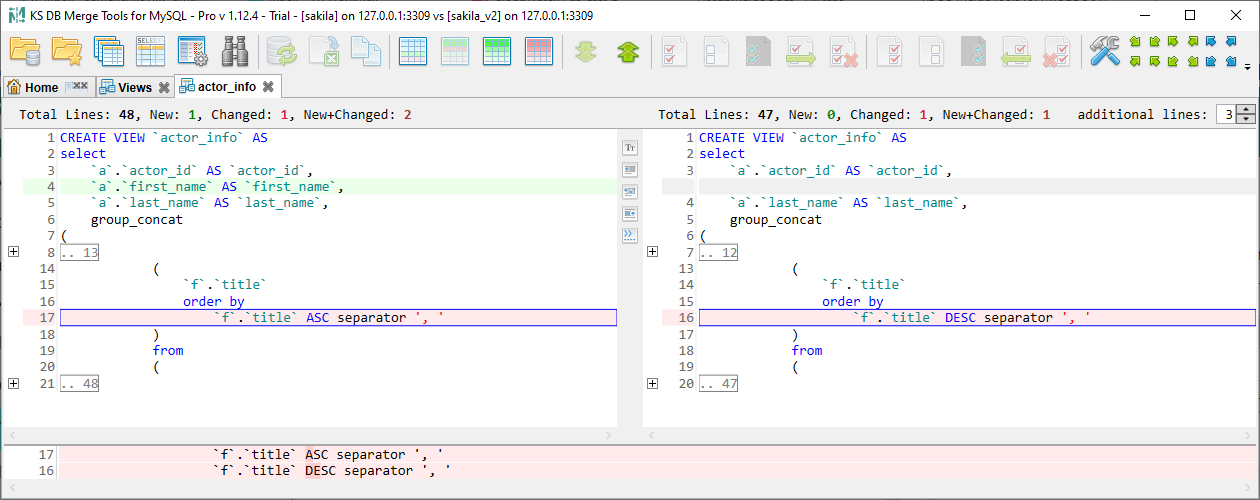
This tab allows to compare text definition of some particular database programming object (like view or stored procedure) or text column value:
Vertical toolbar between two panels contains additional tab-specific actions:
 Open Data diff for the current table/view
 Open Data diff for the current table/view filtered only to new and changed records
 Open Table structure diff tab for the current table, applicable only for tables
 Ignore case
 Ignore leading and trailing whitespaces
 Ignore all whitespaces
 Ignore empty lines
 Show tab and space characters
 Show line numbers
 Word wrap
 Refresh diff (Ctrl+R), available only for editable object types (see Editing below), active only if left or right panel is in the edit state
 Edit both in external diff tool, available only for editable object types (see Editing below), active only if both panels are not in the edit state
The state of Show tab and space characters and Show line number toggles is common for the Text diff tab and other tabs having bottom text preview (Object list, etc.).
Main text area highlights new and changed lines (whole line highlighted), bottom panel shows selected line with per-character changes highlighted. Top panel shows text changes summary: total number of rows, new, changed, new+changed and unchanged line counts. Note that when you change text comparison options like ignore case or white spaces - changes highlight and new/changed totals can be changed because of different text comparison rules.
You can filter text lines to show only new, changed or new+changed lines. In this case most of the unchanged lines are collapsed and can be shown/hidden using the +/- buttons to the left of the text area. Number of unchanged lines shown by default is configured in ADD.LINES field in the right-top corner.
When Word wrap is enabled, horizontal scrolling is disabled, as it is no longer needed in this mode. To maintain visual alignment of wrapped lines between the two sides of the diff, the opposite line may be padded with a number of non-breaking space (NBSP) characters. These characters are not shown in Show tab and space characters mode, but will be present when selecting and copying text. In rare cases, word wrapping may cause the number of visual lines to differ between the two sides of the diff. If this disrupts readability, it is recommended to disable Word wrap for such texts.
For editable object (table data value and most of the object types except table definitions and table constraints) each text changes summary panel contains buttons to manage the edit state:
 Edit - enter in the Edit mode
 Save edit changes to the database, opens Execute script dialog that will contain SQL script with desired action.
 Cancel edit changes and reset text like it was before any edits, additional confirmation dialog shown.
Editing is a relatively new feature and may not work as smoothly as in many other popular text diff tools. To work around these limitations, you can configure an external text diff tool in the Settings dialog on the Text Diff tab, under the External Tools section. Once configured, Edit both in external diff tool button becomes available (you will need to reopen the Text diff tab after Settings change). When you click this button, the compared texts will be saved to a temporary folder (the same one configured in the Settings on the Misc. tab, Local Cache group) and the external tool will launch for editing these files. A corresponding notification will then appear in the Text Diff view:
External diff opened. Save texts in external tool to update diff here, close external tool to switch back to the regular edit state and save changes to the database.


