This dialog is opened using  Custom data diff toolbar button and allows to specify custom column mappings for keys and comparable columns:
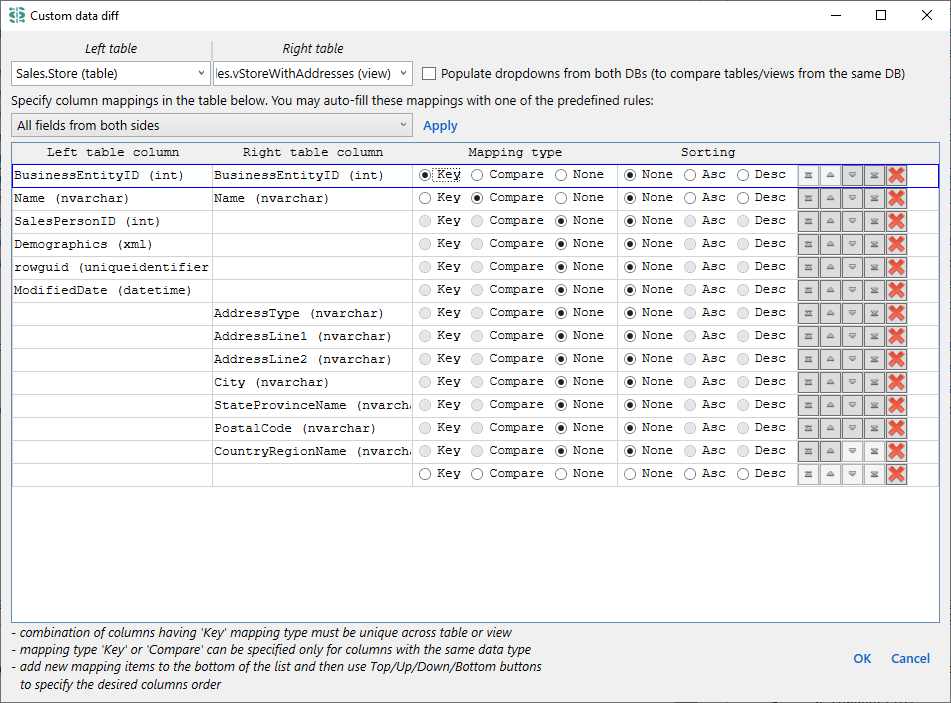
This dialog is also opened with Column mapping action from Data diff and Query result diff tab. For Query result diff this dialog is also opened when you specify Customize key & data column mapping option. In both Data diff and Query result diff this dialog is opened without Left table / Right table at the top because it is already defined by application usage context: for Data diff you process some concrete table/view, for Query result diff you have already defined arbitrary query text.
By default, Left table and Right table dropdowns include tables and views from the corresponding database. Populate dropdowns from both DBs (to compare tables/views from the same DB) makes both dropdowns to be populated with objects from both databases, making it possible to compare data from two different objects from the same database.
After table dropdowns, there is a comment for auto-fill rules:
Specify field mappings in the table below. You may auto-fill these mappings with one of the predefined rules:followed by the dropdown with rules and Apply button. These rules can simplify mapping population. For example, if we have:
| Rule | Result | Similar to SQL JOIN |
|---|---|---|
| All fields from both sides | A | A B | C | C | D |
FULL JOIN |
| Only common fields with the same data type | A | A C | C |
INNER JOIN |
| All fields from the left side | A | A B | C | C |
LEFT JOIN |
| All fields from the right side | A | A C | C | D |
RIGHT JOIN |
| Clear all |
After mapping rules there is a column filter configuration:
Column filters: ○ None ○ Common for both ○ Per sideThis setting allows you to define a
WHERE condition that is applied when retrieving data from the database. Filtering data can significantly speed up both the diff result calculation and the generation of merge scripts, as only the relevant rows are processed.
Filter expressions are not passed to the database as raw text. Instead, they are parsed, validated, and converted into parameterized SQL conditions. This approach provides SQL injection protection and ensures consistent behavior across different database engines. The expression syntax is designed to be familiar to users with SQL experience, but it is important to remember that the final output is a standard SQL WHERE clause, with all its semantics. For example, the expression NOT(42) will filter out rows where the value equals 42, but it will not return rows with NULL values, because in SQL any comparison with NULL does not provide a boolean result.
Parsing and validation depend on the generic data type assigned to the column: Number, String, or DateTime. For instance, entering a bare value like 42 results in an exact match (= 42) for a numeric column, but a substring search (LIKE '%42%') for a string column. The mapping between database-specific types and generic data types is described on this page.
banana, 42):
CONTAINS).EQUALS).NULL (without quotes) is treated as IS NULL.>, <, >=, <=AND(...), OR(...), NOT(...)CONTAINS(value) — substring searchEQUALS(value) — exact matchDATEIS(YYYY-MM-DD) — matches all values falling on the specified calendar day. For DateTime columns this generates a half-open range [date, date+1).'hello world'.'O''Reilly'.NULL: 'NULL' (vs. unquoted NULL which means "is null").contains, CONTAINS, Contains are equivalent). String value matching respects the database collation settings.| Expression | Meaning |
|---|---|
banana | Substring search for "banana" (for String columns) |
NOT(banana) | Rows where the value does not contain "banana" (excludes NULL) |
NULL | Matches rows where the column value IS NULL |
'NULL' | Substring search for the literal string "NULL" |
EQUALS(banana) | Exact match with the string "banana" (same as EQUALS('banana')) |
42 | For Number: exact match (= 42); for String: substring search (LIKE '%42%') |
>42 | "Greater than" filter. For numbers: returns 43, 340, etc. For strings: returns "43" but not "340" (lexicographic order) |
AND(>42, <45) | Range: values strictly between 42 and 45 |
OR(<42, >45) | Two ranges: less than 42 OR greater than 45 |
OR(AND(>=10, <=20), AND(>=30, <=40)) | Values in [10, 20] OR [30, 40] (inclusive) |
OR(NULL, 42) | Rows where value is NULL OR equals/contains 42 (depending on column type) |
DATEIS(2025-01-01) | For Date: exact match on 2025-01-01. For DateTime: all timestamps on that calendar day (>= '2025-01-01 00:00:00' AND < '2025-01-02 00:00:00') |
>2025-01-01 | For Date: values starting from 2025-01-02. For DateTime: values strictly after 2025-01-01 00:00:00 (midnight on Jan 1 is excluded). Since SQLite uses text representation, comparison is lexicographic. |
TRUE | For Boolean columns: matches TRUE. For String columns: substring search for "TRUE". |
Note on Boolean values: When filtering Boolean columns, the following literals are recognized and normalized: True/False, 1/0, and Yes/No (case-insensitive). All are converted to a standard boolean parameter before being passed to the database.
At least one mapping item must be specified as a Key, otherwise an appropriate error shown when clicking OK. The dialog footer includes additional notes regarding mappings table:
- combination of columns having 'Key' mapping type must be unique across table or view
- mapping type 'Key' or 'Compare' can be specified only for columns with the same data type
- add new mapping items to the bottom of the list and then use Drag/Move buttons to specify the desired columns order
Option Save to diff profile is available if the Home tab has loaded diff profile, both DBs are loaded, and the dialog is opened in one of two ways:


